

I am a designer. Beyond a little PHP, HTML, and CSS from a long time ago, I have no real programming background. I definitely do not have the skills needed to build what I am building these days.
Then one day a hero arrived. Its name is Cursor.
The idea of coding with AI without knowing how to code has been around for a while, but a lot of people still have not tried it. I had been aware of it for some time, but I only really started using it about two months ago.
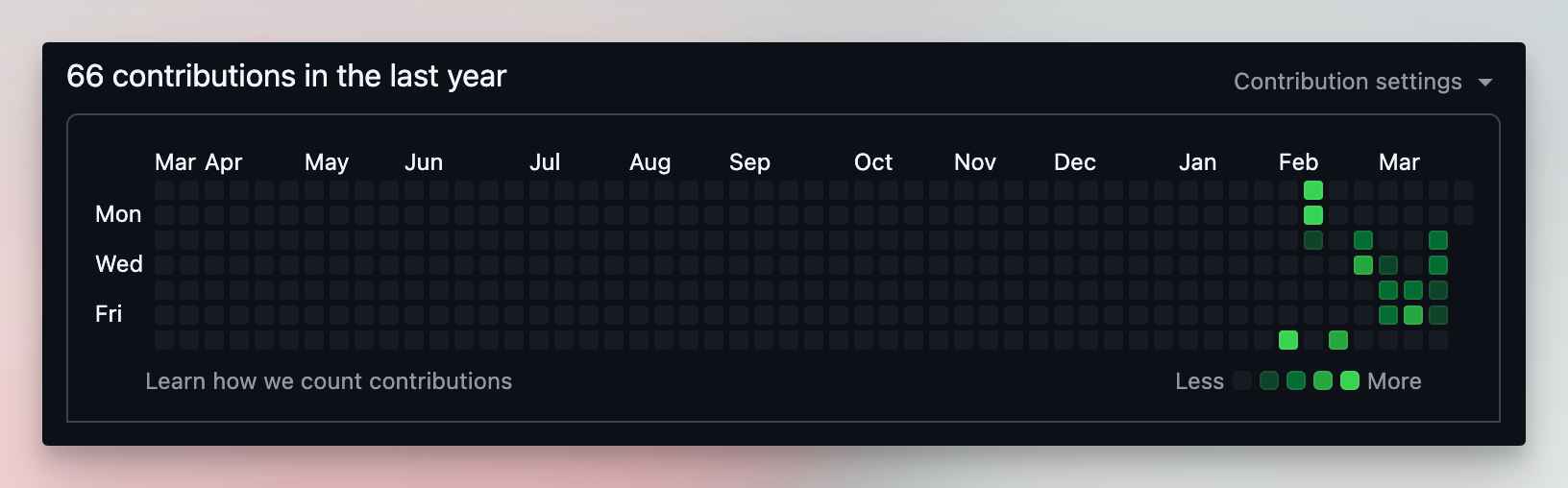
I track everything on GitHub.
Pretty much every day since then I have been spinning up some AI coding agent and trying to make something with it.
Tools I have used in that stretch:
- Windsurf
- Lovable
- Bolt
- Cursor
They each aim at different things. With Lovable and Bolt you can ship real software without knowing the first thing about programming. Windsurf and Cursor are a small step beyond, but really that step is less about programming and more about knowing how software actually runs and which environments to use.
And that gap keeps narrowing.
You can now do, inside Cursor with the right MCPs, the kinds of things you used to need Lovable for.
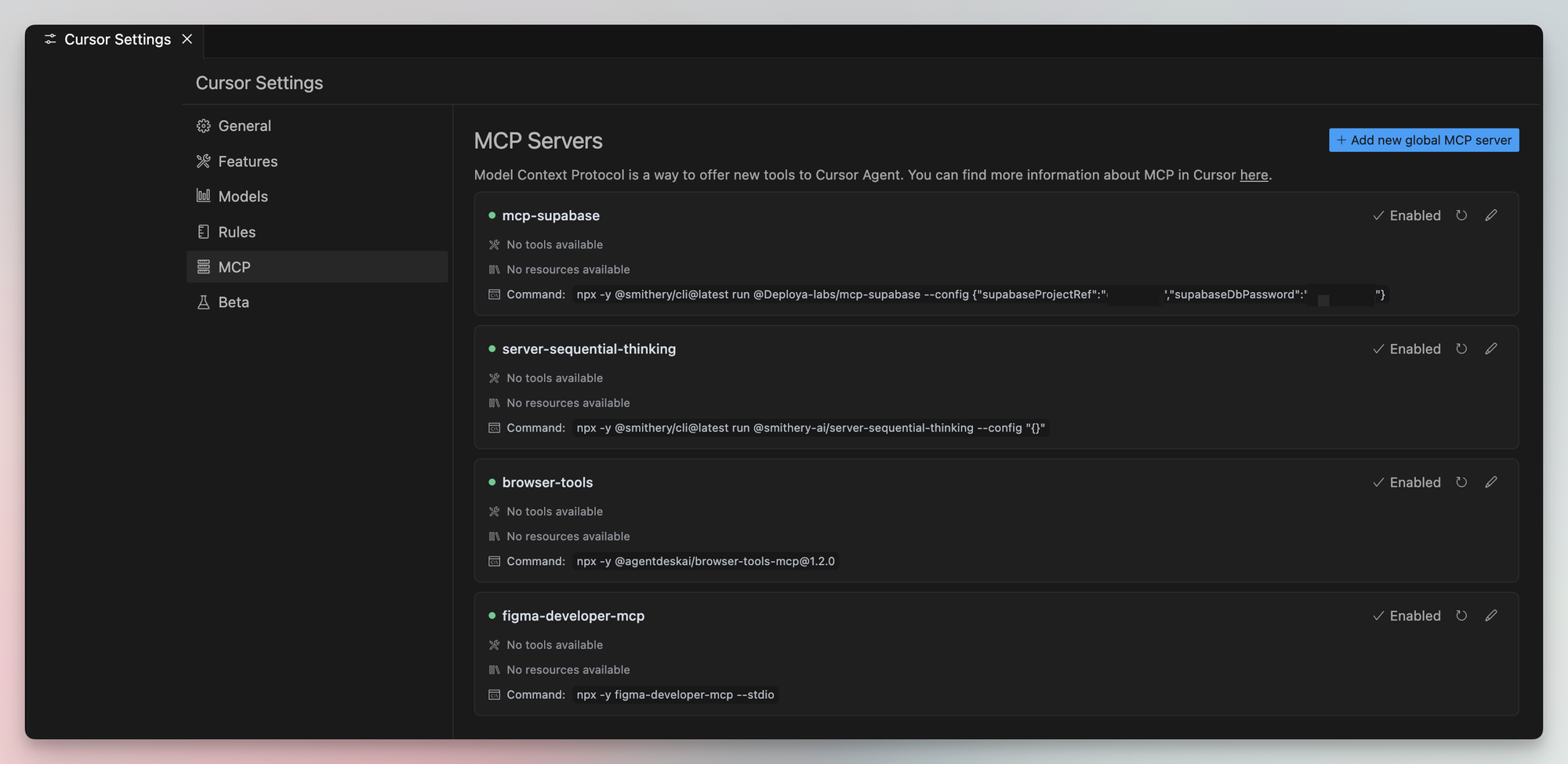
For example, there is a service called Supabase. Remote database, auth, all that. Lovable used to handle it for you automatically. Now, with the Supabase MCP, Cursor can do the same.
What is the Model Context Protocol (MCP)?
The Model Context Protocol (MCP) is an open standard designed to let AI assistants connect seamlessly to a variety of data sources and have context-aware interactions. (Microsoft)
Through MCPs you can hook a long list of tools into Cursor and use them right inside the editor.
What is the Figma MCP?
The Figma MCP lets AI-powered coding tools like Cursor, Windsurf, and Cline read your Figma design files. When Cursor can access actual Figma design data it is dramatically better at translating designs into code in one pass than approaches like pasting screenshots.
Because the MCP exposes the underlying CSS of every element, the assistant can see font details, color values, shadows, borders, and so on directly.
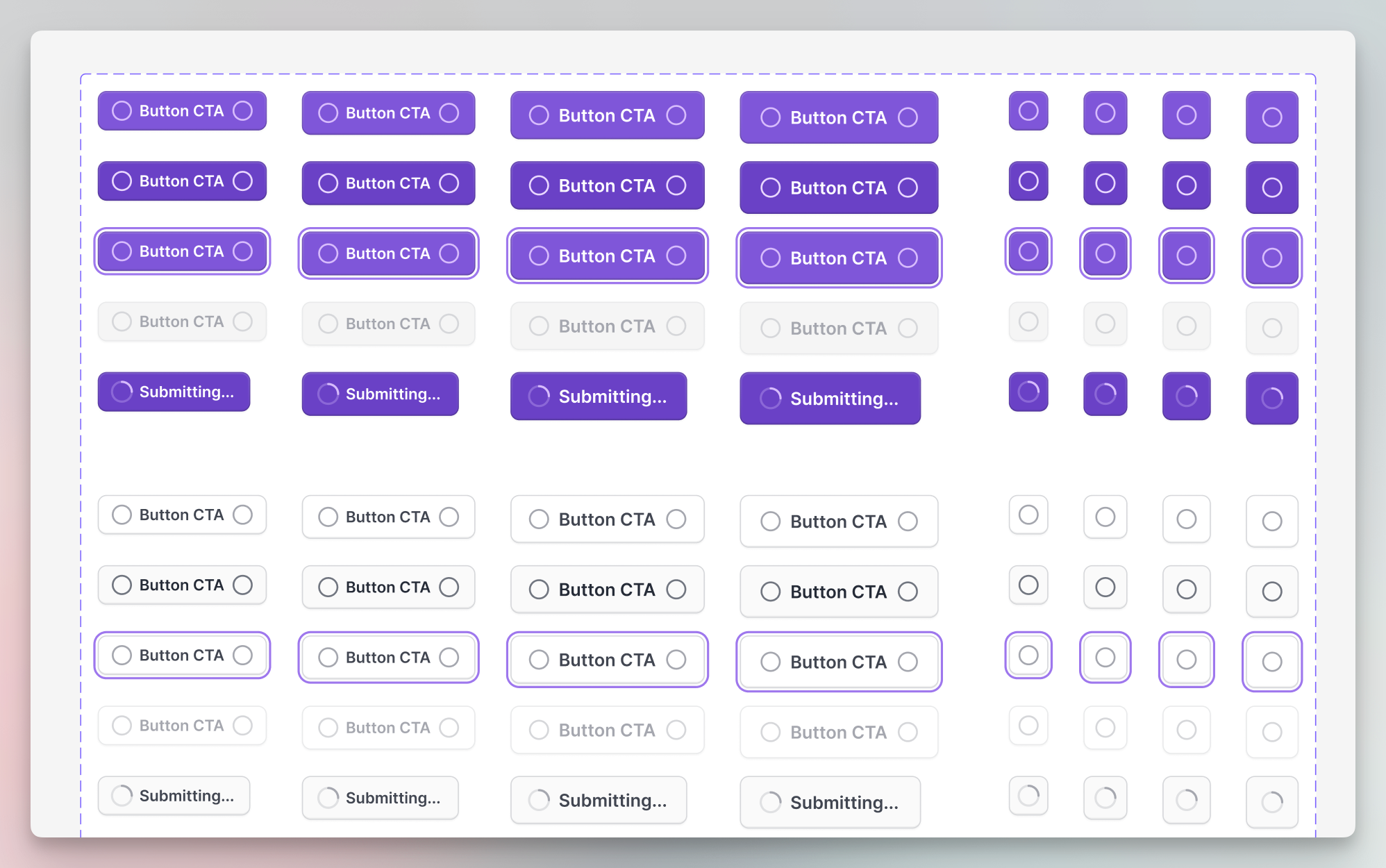
Imagine you have designed a button and you want to hand every visual detail to Cursor. You could feed it a screenshot, or describe each property step by step. Both are slow, expensive in credits, and inconsistent.
With the Figma MCP you copy the frame link and that is it. Far more consistent, far less friction.
How to set up the Figma MCP in Cursor
Prerequisites
- A Figma account (the free tier is enough).
- Cursor IDE (you can try it inside the free limits, but a subscription is needed for serious use).
Get a Figma API token
- Open the Figma UI.
- Click the notifications icon.
- Click the settings icon on the right of the panel that opens.
- Click "Security" on the right of the next panel.
- Scroll down to "Personal Access Tokens".
- Click "Generate new token".
- Give the token a name and expiry, then click Generate Token.
- Copy the token somewhere safe.
Figma may change this UI; if it has, check the Figma docs.
Run the Figma MCP locally
- If you do not already have it, install Homebrew via your terminal:
/bin/bash -c "$(curl -fsSL https://raw.githubusercontent.com/Homebrew/install/HEAD/install.sh)"- After Homebrew, install Node.js if it is not already installed:
brew install node- Then run the figma-developer-mcp package, replacing the placeholder with your real Figma API token:
npx figma-developer-mcp --figma-api-key=YOUR_FIGMA_TOKENSo the full command should look something like:
npx figma-developer-mcp --figma-api-key=abcd-efgh-1234-xyzWire the MCP into Cursor
Once the MCP is running in your terminal, plug it into Cursor:
- Open Cursor. Top-right menu → Cursor → Settings → Cursor Settings.
- Click "MCP", then "Add new global MCP server".
- Paste the JSON below into the editor. Replace the API key placeholder with your Figma token.
- Save with Cmd + S and close the page.
{
  "mcpServers": {
    "Framelink Figma MCP": {
      "command": "npx",
      "args": ["-y", "figma-developer-mcp", "--figma-api-key=YOUR_FIGMA_TOKEN", "--stdio"]
    }
  }
}How to actually use it
Once the MCP is live in the terminal and registered in Cursor, the workflow is dead simple:
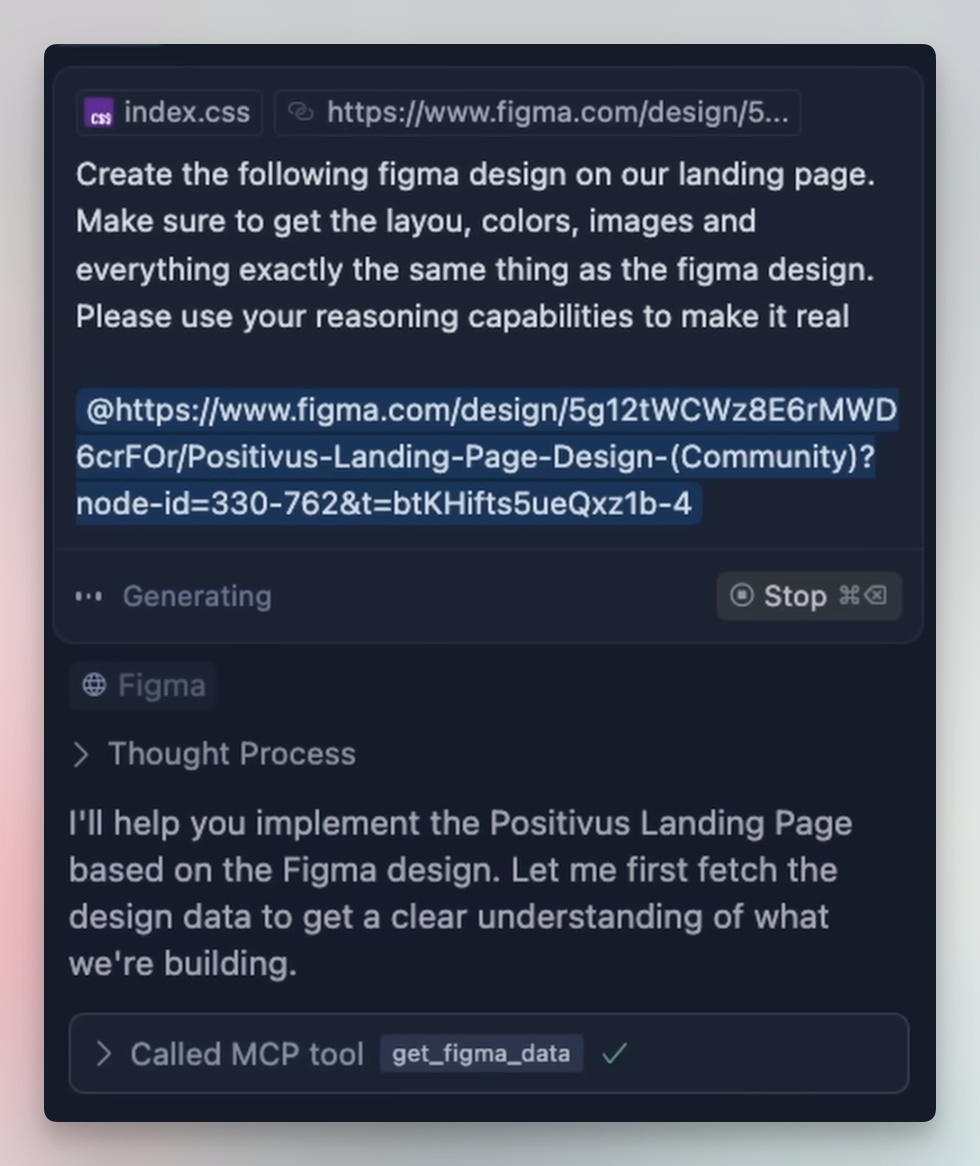
- Send a message like: "I want you to implement this Figma design at 100% fidelity: <figma frame link>"
- Wait for the response.
- Review the result and follow up with whatever it missed.
Getting good results from the Figma MCP takes a little care. Some things it will not do well on its own:
Watch out for
- Vector assets are not exported. If you are using vector illustrations, export them to PNG or JPG inside Figma first and reference those.
- Very large pages overflow the context. A long landing page or a dense dashboard frame can be too much, especially for default Sonnet 3.5. For very large designs, pick a model with a bigger context window like Sonnet 3.7 Max. That model is more capable, but it also burns more credits.
My recommendations
- Whole-page conversions rarely come out clean on the first pass. Cursor struggles with the sheer number of components. If you must do the whole page in one shot, be patient and refine in chunks afterwards.
- Component-by-component is the approach I recommend. For a landing page, do the hero, then the next section, and so on. For a dashboard, do the shell first, then each card. It is the most reliable way to keep quality high.
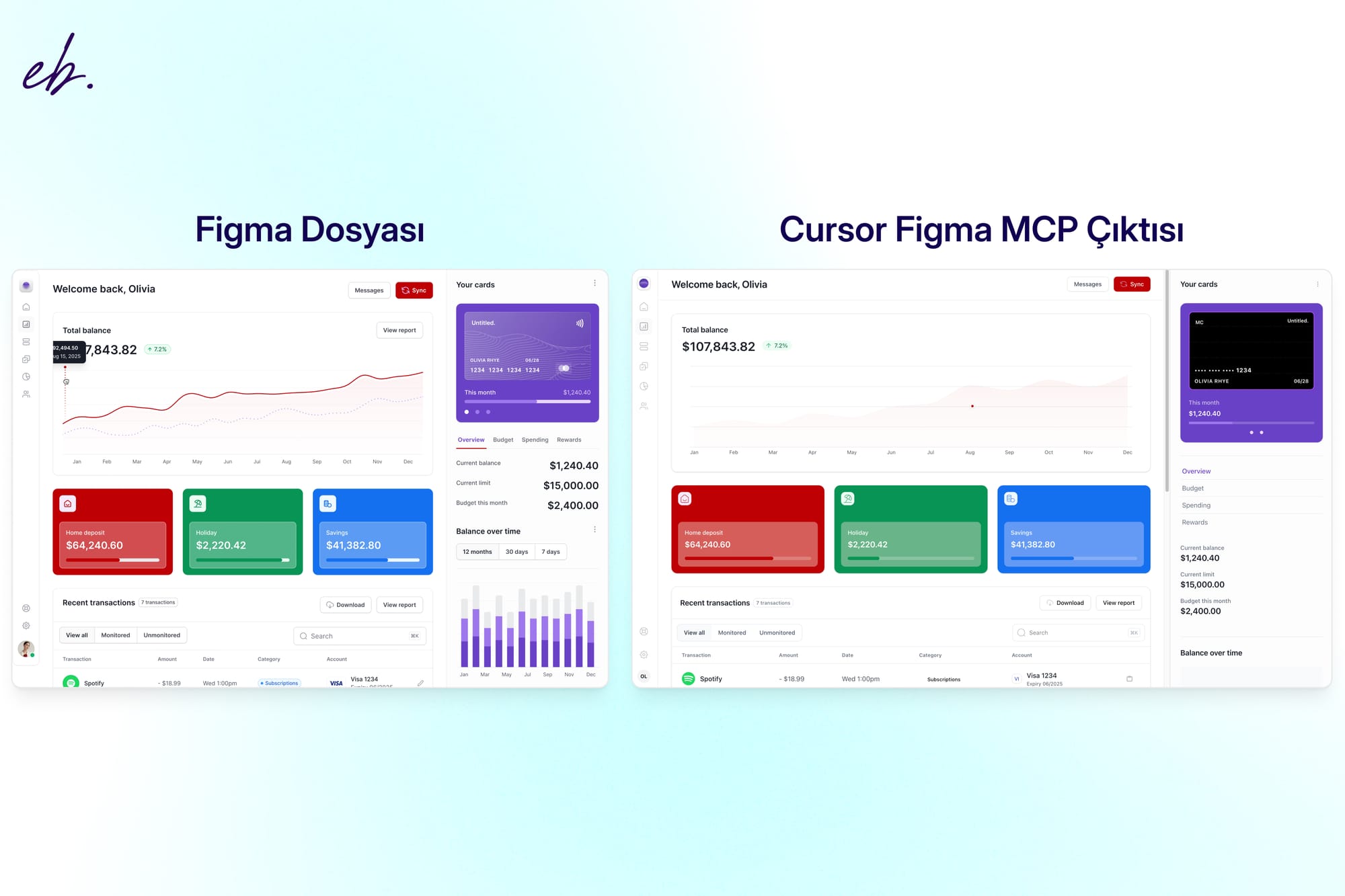
Result
Closing
The Figma MCP is a real step forward for AI-assisted coding. Even without a software background, designers can take real projects from idea to production. The Cursor + Figma integration makes the design-to-code handoff dramatically simpler. These tools keep getting better; I will keep experimenting and writing up what I find. Share your own experiments too.